A vocal sounds distorted in the headphones. The session says “32-bit float.” Is the take safe?
Possibly—but that setting alone cannot answer the question. You need to know how the sound reached the file and where the distortion occurred. A monitoring overload, a damaged recording, and an overloaded microphone can sound similar while needing very different responses.
The RØDE NT1 5th Generation is a useful example because it offers both USB and XLR connections. Its built-in 32-bit float recording capability belongs to the USB path, not the analog XLR output.
The short answer: some level problems are recoverable, not all distortion
A properly captured 32-bit float recording can retain signal levels that need turning down before playback or delivery. A clipped-sounding monitor feed does not necessarily mean the underlying recording has been damaged.
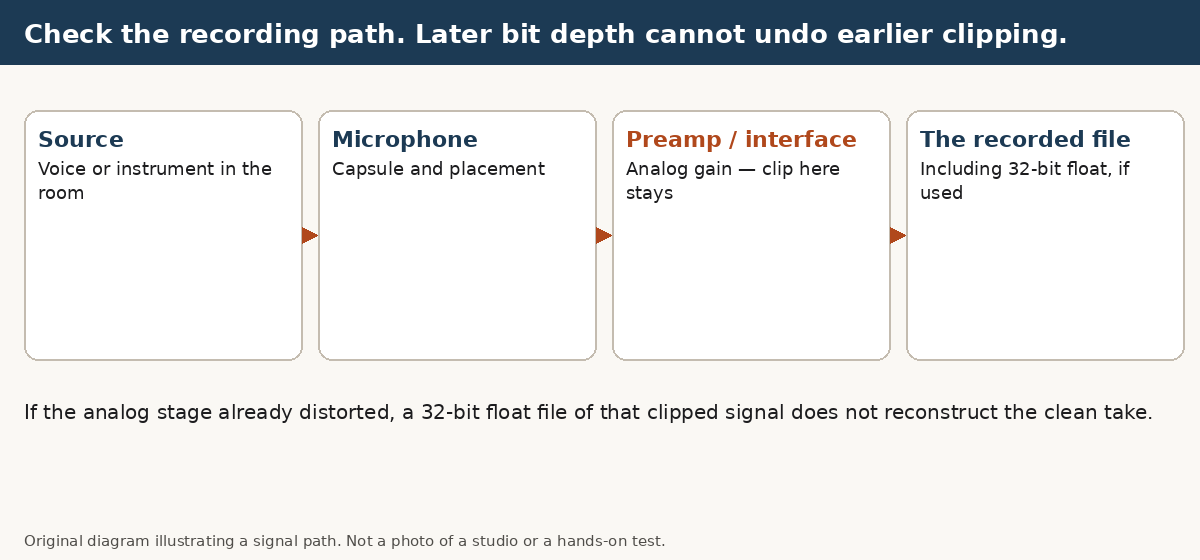
That is different from reconstructing audio already distorted earlier in the recording chain. Changing the file format cannot recreate a clean performance that was never captured.
RØDE’s NT1 5th Gen clipping support article makes this distinction explicitly: monitoring can clip while the recorded audio remains usable, but exceeding the microphone’s maximum sound pressure level can produce distortion that cannot be corrected afterward, even in 32-bit float mode.
USB and XLR are different recording paths
NT1 5th Gen over USB
With USB, the microphone’s built-in audio interface supplies the digital signal. RØDE says both the microphone and the recording software must be configured for 32-bit float recording; not every recording application supports it.
Check the actual input device and recording settings, not just the project name or export menu. RØDE’s NT1 5th Generation user guide explains the supported setup. On Windows, its 32-bit float workflow requires the microphone’s custom ASIO driver and the appropriate float driver selection in the DAW.
NT1 5th Gen over XLR
The XLR output sends an analog signal to an external preamp, interface, or recorder. It does not carry the microphone’s built-in USB 32-bit float output. RØDE confirms this in its XLR-output support article.
An external interface or recorder might have its own 32-bit float capability, or it might not: a USB interface such as the Focusrite Scarlett 2i2 (4th Gen) is specified for 24-bit recording. That is a separate recording system to check, not a feature inherited from the microphone’s XLR connection. Its input stages, conversion, and recording configuration still matter.
A 32-bit float export does not prove how the vocal was recorded
There are three separate questions:
- Capture: What microphone connection, interface, and recording mode were used?
- Processing: What happened to the signal inside the session?
- Export: What format was chosen for the file being sent?
A file can be exported as 32-bit float after an earlier recording was already distorted. The new format does not undo that damage. Likewise, a DAW’s floating-point processing setting is not, by itself, proof that the original input was captured through a suitable 32-bit float recording path.
If someone sends a file labeled “32-bit float,” ask for the original recording and the capture settings before assuming there is recoverable audio above the apparent ceiling.
Check the take without destroying the original
Use this as a diagnostic sequence, not a promise of recovery.
- Keep the original file and duplicate the session. Avoid overwriting the source while testing gain changes or repair tools.
- Check the recording path. For the NT1 5th Gen, establish USB versus XLR, the selected input device, and the recording mode. If an external recorder was involved, check its documentation separately.
- Listen to an unprocessed copy at a safe playback level. Bypass effects on the vocal and its downstream buses in the test session. If the distortion disappears, investigate that processing path before treating the source as damaged.
- Reduce the source level before downstream processing. Use clip gain or an equivalent pre-effects gain control and replay the problem phrase. Simply lowering a fader after an overloaded effect may only make the same distortion quieter.
- Check the output path too. A usable floating-point file still needs an appropriate level for playback and any subsequent export. Distortion heard at the output is not conclusive evidence about the original file.
- Compare what changed. If reducing the unprocessed source level reveals a clean phrase, the problem may have been level-related rather than permanently recorded distortion. If it remains distorted, do not assume another format conversion will fix it.
For clipping heard during NT1 5th Gen monitoring, RØDE recommends reducing the microphone input gain in the recording software. Hearing a cleaner monitor feed is useful, but it is not a substitute for checking the recorded take.
The microphone still has a physical limit
RØDE lists a maximum SPL of 142 dB for the NT1 5th Gen in its clipping support article. The same article warns that exceeding that limit can create genuine distortion that 32-bit float recording cannot correct.
That specification is not a diagnosis of every rough-sounding vocal. Nor does moving farther from the microphone prove that a previous take exceeded its SPL limit. If you suspect overload, record a short comparison with more distance and check the result before continuing the session.
Do not keep an obviously distorted take solely because a float setting was enabled. If a clean retake is practical, preserve that option rather than relying on later restoration.
What to tell a mixing engineer
Send the original recording rather than only a processed export. Include the microphone model, USB or XLR connection, interface or recorder if used, recording application, known capture settings, and a timestamp for the problem phrase. The same labeling habits from our guide to sending stems apply here. Say whether you heard the distortion while recording, on playback, or only after adding effects.
These details help separate a recording problem from a session-level problem. They do not guarantee that damaged audio can be repaired.
For the broader file handoff, see How to Prepare Your Track for Professional Mixing. If you need help deciding what the recording needs next, describe the project to Power Chord Studio before sending a full session. You can also read the mixing and mastering service overview.